Make a drawing wave, and reuse a photo without uploading it again
Published:
Turn a photo of a drawing into a looping GIF in ChatGPT, then save a photo as a named reference and use it in a later chat.
Video
What you want
A child's drawing is lying on the table, and you'd like to send it to grandma with a bit of life in it. Or you want a card with the family dog, without hunting for the same photo every time. ChatGPT Images can now do both: animate a still picture as a looping GIF, and save a photo as a named reference you can use again in a later chat.
A method you can follow
Make the drawing wave
- Photograph only the paper. No faces, no names, no school or address in the shot, and give the file a neutral name.
- In a new ChatGPT chat on the web, attach the photo with + → Add photos & files. On my account there was no separate GIF button; you ask for it in the prompt.
- Send the first prompt below. Say what should move and what must stay the same.
- Open the GIF. The viewer had Playback speed and Download GIF. Download it and look at it before you send it to anyone.
I tested this on 14 November 2026 with the Thinking model at Medium effort. The GIF came back after 38.6 seconds: nine frames, a loop of about one second, and a dragon that still looked like the crayon drawing, waving.

To be clear about the input: for the video I used a digital crayon-style drawing made to look like a phone photo of paper, not a photo of a real child's drawing.
Save a photo once, use it later
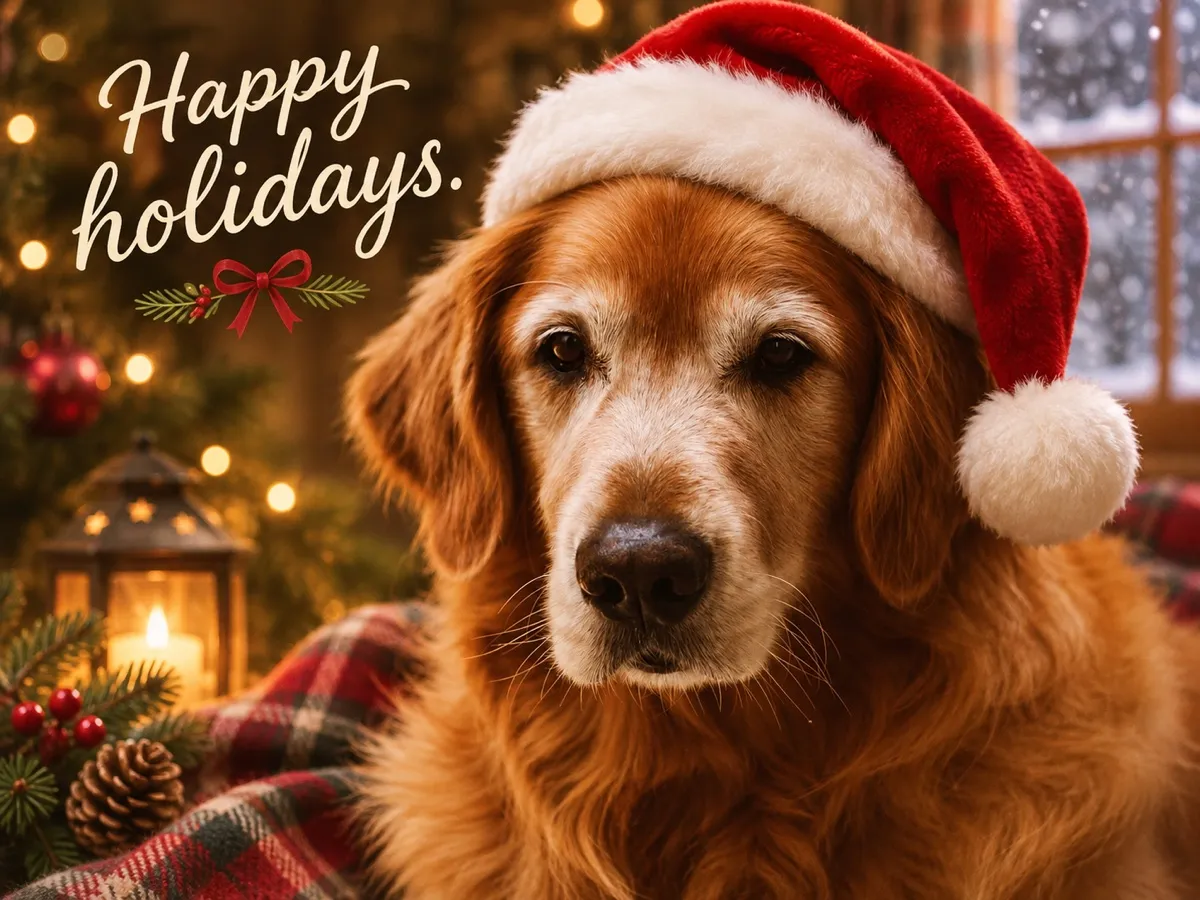
- Upload the photo you'll want again and ask ChatGPT to save it as a reference with a name. I used a stock photo of a golden retriever and the name Pepper. ChatGPT did not offer to save it on its own; I had to ask. It answered: "Pepper has been saved! … ready to reuse in future image generation without uploading it again."
- Start a new chat. Type @ and the name, and write what you want. No upload.
- Check that it's the same dog.
The card came back after 34.7 seconds. Same dog, in a Santa hat, with the short text I asked for.
A prompt you can copy
The GIF prompt, word for word:
Make this character wave, as a looping GIF. Keep the look of the attached crayon drawing: the same dragon, colors, and simple hand-drawn style. Only the character should move, with a friendly wave that loops smoothly. Do not add a real person, a name, a face from a photo, or any text on the image.Saving the reference (with the photo attached):
Please save this photo as a reference named Pepper.The card, in a new chat with nothing attached:
Make a Christmas card of @Pepper in a Santa hat. Keep @Pepper recognizable from the saved reference. No people, no real names, and only short card text if needed, such as "Happy holidays."What to check
- Is it there on your account? OpenAI's help page said GIF creation was still rolling out when I tested. If nothing moves, that may be why.
- Does it still look like the drawing? Compare the GIF with the original. If the colours or the character changed, say exactly what must stay the same and try again.
- Is it the same dog? A reference makes it easier, not certain. Compare the card with the original photo before you send it.
- What's in the picture. Anything you upload goes to OpenAI. Leave out children's faces and names, and anything you wouldn't post.
- Where it goes. The viewer also has a share button. Download the GIF and send it yourself, to the people you choose.